
How to Design Product Packaging in Figma
Master product packaging design with Figma. This guide covers creating layouts, adding branding elements, and building 3D mockups. Learn how to design for small brands using practical examples and real-world workflows. With support from tools like ChatGPT, you can brainstorm ideas quickly. Perfect for beginners and professionals, this tutorial helps you create visually appealing packaging that enhances product value and customer experience.
Design Packaging Concepts for Small Brands — How-To with Figma. Get practical lessons and hands-on examples at AIComputerClasses in Indore to master graphic design & multimedia skills quickly. Follow practical exercises and tool-based examples to learn rapidly. This article from AIComputerClasses Indore breaks down design packaging concepts for small brands — how-to with Figma into actionable steps. Includes references to tools like ChatGPT, Power BI, Excel, Figma, or Python where appropriate.
🎨 Design Packaging Concepts for Small Brands — How-To with Figma
Good packaging isn’t just a box — it’s your brand’s first impression. Whether it’s a chocolate bar, a skincare product, or a handmade candle, the right packaging design tells your brand’s story instantly.
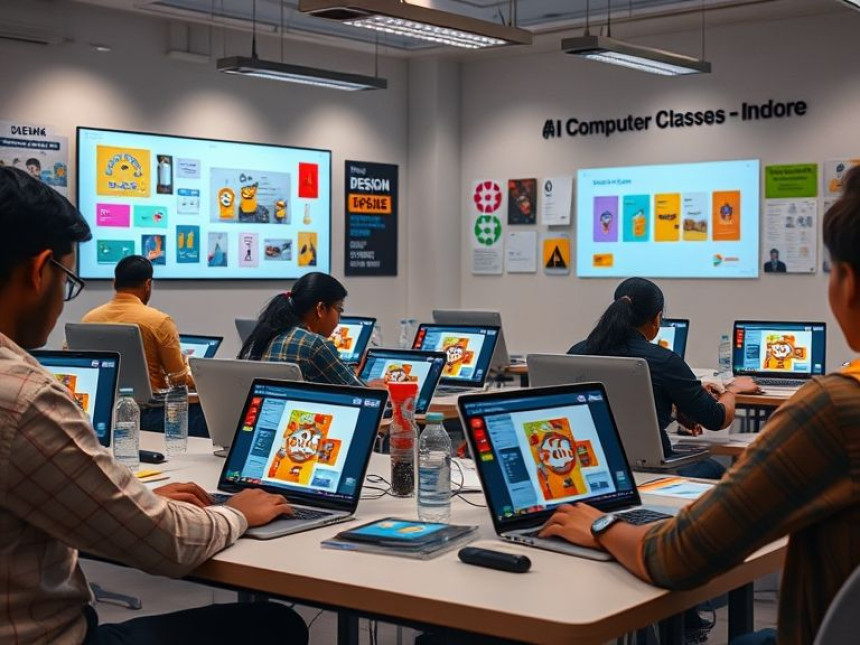
At AI Computer Classes – Indore, students learn how to create visually striking and practical packaging designs using Figma — a tool that’s changing the way designers build digital and print visuals.
This article walks you through a step-by-step guide to designing packaging concepts for small brands using Figma — from research to mockup.
💡 Why Packaging Design Matters for Small Brands
For small businesses, packaging is more than protection — it’s marketing in disguise. A well-designed package can:
- Attract attention on crowded shelves 🛍️
- Build instant brand recall 🌟
- Communicate quality and authenticity 💬
- Influence buying decisions 💸
Think of how Apple’s clean white boxes or Starbucks’ minimalist cups instantly convey brand identity.
Your goal as a designer? Create a packaging concept that speaks directly to your brand’s audience.
🧠 Step 1: Research Your Brand and Product
Before you start designing in Figma, understand the brand personality and audience.
🎯 Key Questions to Ask:
- What emotions should the packaging evoke?
- Who is the target audience (youth, professionals, eco-conscious buyers)?
- What materials or printing styles will be used (paper, plastic, foil)?
For example:
A small organic tea brand might prefer earthy tones, matte finishes, and botanical illustrations — giving a natural and premium look.
💡 Pro Tip: Use ChatGPT to brainstorm color palettes or tagline ideas that match the product mood.
🧩 Step 2: Create a Design Brief
A clear brief helps you stay consistent throughout the process.
Include in your brief:
- Brand name and logo placement
- Packaging dimensions (box, pouch, or label size)
- Typography guidelines (fonts, hierarchy)
- Color scheme
- Mandatory information: Ingredients, barcode, and QR code
At AI Computer Classes – Indore, students practice creating real-world briefs using case studies from small brands.
🖌️ Step 3: Set Up Your Figma Workspace
Open Figma and create a new frame according to the product’s packaging size.
✅ Recommended Setup:
- Frame dimensions based on packaging template (e.g., 15cm x 10cm)
- Add grids or guides for layout alignment
- Create layers for background, logo, text, and graphics separately
💡 Use Figma components for reusable design elements like logos or icons.
If you’re designing a box, prepare separate frames for:
- Front view
- Back view
- Top and side panels
🎨 Step 4: Design the Visual Concept
This is where creativity meets strategy.
Focus on 3 Key Elements:
- Color Palette: Reflects the brand tone — bold, natural, elegant, or playful.
- Typography: Clean and legible; use contrast between headings and details.
- Imagery & Icons: Use vector graphics or product illustrations to enhance aesthetics.
💡 Example: For a handmade soap brand, try:
- Soft pastel colors (lavender, mint green)
- Serif fonts for elegance
- Botanical line art icons
Use Figma’s Plugins like:
- 🎨 Color Palettes for quick scheme generation
- 🖋️ Iconify for professional icons
- 📦 Mockup Studio for 3D packaging visualization
🧃 Step 5: Add Branding Elements
Packaging should instantly identify your brand.
Include:
- Logo — prominent yet balanced
- Tagline or brand slogan
- Social media handles
- Website or QR code
💡 Use QR codes creatively — link to brand story videos or sustainability info.
In Figma, use Smart Layout and Auto Layout to maintain alignment across all sides of the packaging.
🧭 Step 6: Design Back & Side Panels
The back panel usually carries technical details, but it should still align visually with the brand.
Must-have Elements:
- Ingredients or contents list
- Barcode and expiry date space
- Company contact information
- Legal or recycling icons
💡 Keep font sizes readable — especially if the target audience includes older age groups.
At AI Computer Classes, students practice by designing multi-panel packaging layouts for both food and cosmetic brands.
📐 Step 7: Create 3D Mockups in Figma
Seeing your flat design come to life is the most exciting part.
Try These Figma Plugins:
- Mockup Studio – turns your 2D design into 3D visuals
- Artboard Studio – great for photorealistic renders
- Smart Animate – to show opening/closing effects
Once the mockup is ready, export a presentation-ready image for your portfolio or client pitch.
🎥 Students at AI Computer Classes present their packaging mockups with animated reveals using Figma’s prototype feature.
🧰 Step 8: Test & Refine Your Design
Testing ensures the design works in real-world conditions.
Run these checks:
- Does the text remain legible when printed?
- Are colors consistent across materials?
- Does the logo stand out clearly?
- Is the packaging eco-friendly or recyclable?
💡 You can simulate print colors using Figma’s CMYK preview plugins or export files for testing.
🧑🎓 Step 9: Practice Project — Create a Mini Brand
At AI Computer Classes – Indore, students build a small brand concept and design complete packaging.
Example Project:
- Product: “Bloom Choco Bites”
- Goal: Fun and youthful look for a chocolate snack
- Design Tools: Figma, Photoshop (optional for textures)
- Deliverables: Box packaging, label, and 3D mockup
This project teaches layout precision, visual balance, and client presentation — essential for freelance or agency jobs.
📈 Step 10: Export & Deliver
When finalizing packaging for print or presentation:
- Export in PDF (CMYK) or PNG (300 DPI).
- Ensure bleed areas are included.
- Compress files for online submission.
💡 Add a final slide with brand name, tagline, and mockup visuals — perfect for portfolios.
🎓 Learn Packaging Design with Figma at AI Computer Classes – Indore
AI Computer Classes offers hands-on Figma training for graphic designers, marketers, and small business owners.
You’ll learn to:
- Build packaging layouts from scratch
- Create mockups for brands
- Use design psychology for better visual storytelling
- Export print-ready designs
👉 Enroll today to turn your design ideas into real-world branding visuals!
📍 Old Palasia, Indore | www.aicomputerclasses.com
🧾 Conclusion
Packaging design is a blend of art, strategy, and communication. With Figma, small brands can visualize their identity professionally without expensive tools.
By following this tutorial, you’ve learned how to:
✅ Research brand goals
✅ Design packaging layouts in Figma
✅ Add branding elements and mockups
✅ Prepare print-ready exports
Whether you’re a designer, entrepreneur, or marketing student, mastering packaging design with Figma gives your work a competitive edge.
Start designing, keep iterating, and let your creativity wrap the brand perfectly! 🎁
📞 Contact AI Computer Classes – Indore
✉ hello@aicomputerclasses.com
📱 +91 91113 33255
📍 208, Captain CS Naidu Building, Near Greater Kailash Road, Old Palasia, Indore, MP 452018
Beginner's Guide: Identify Breakout Trades with Volume with Tally Prim...